> For the complete documentation index, see [llms.txt](https://docs.merchant.alb.ua/llms.txt). Markdown versions of documentation pages are available by appending `.md` to page URLs; this page is available as [Markdown](https://docs.merchant.alb.ua/en/payment-widgets-for-cms/magento-2/settings-and-authorization.md).
# Settings and authorization
{% stepper %}
{% step %}
### Transition in module settings
To configure the payment module "Alliance Payment"
To do this, you need to:
* Go to the Magento 2 admin panel
* Go to the path\
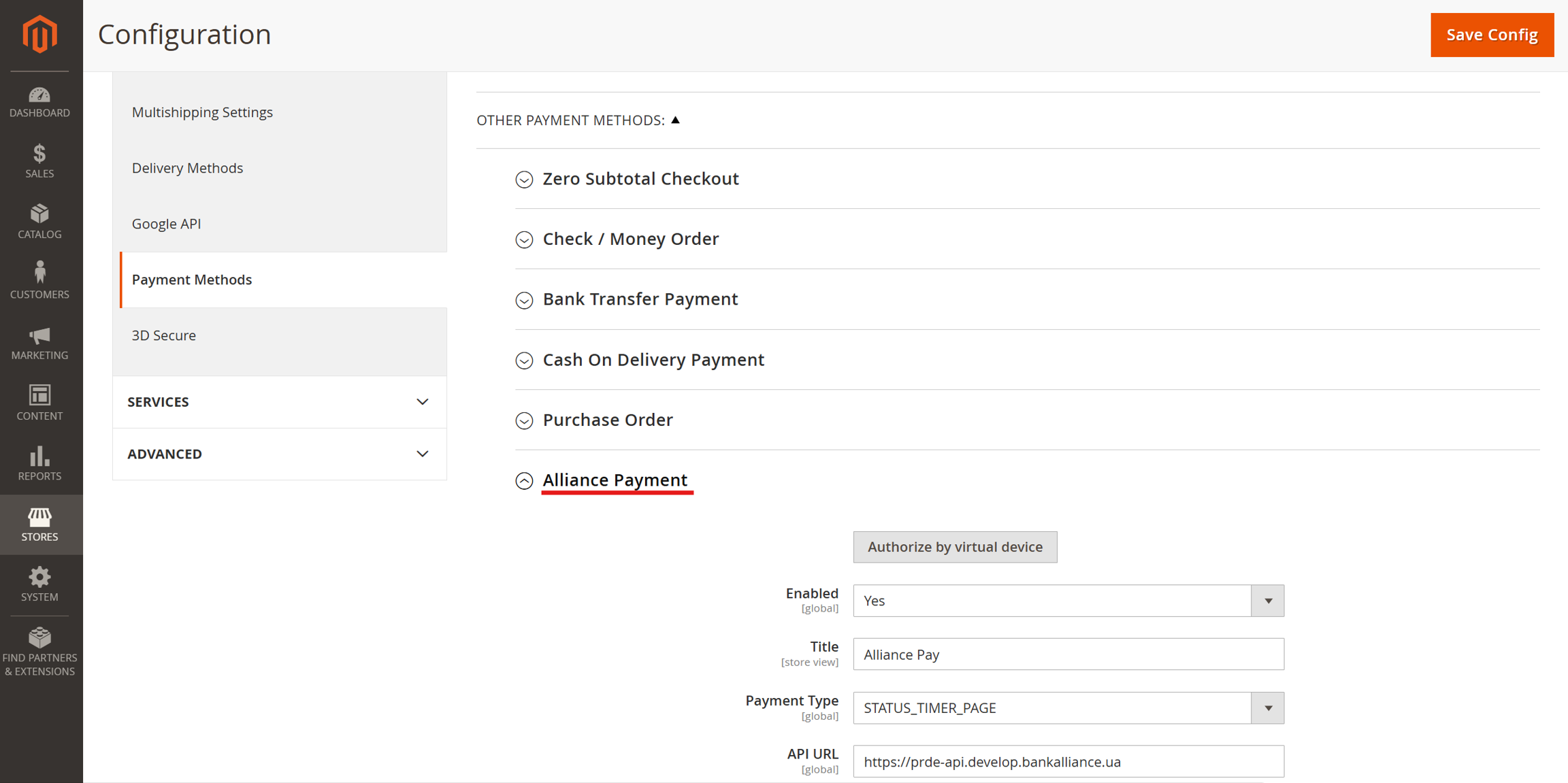
`Stores → Configuration → Sales → Payment Methods → Alliance Payment`
{% endstep %}
{% step %}
### Initial settings
Window displaying all settings
Description and values of the fields:
| | | |
| ------------------------------- | ------------------------------------------------------------------------------------ | -------------------------------------------------------------------------------------------------------------------------------------------------------------------------------------------------------------------------------------------------------------------------------------------------------------------------------------------------------------------------------------------------------------------------------------------------------- |
| Enabled | Yes No | Enable and disable the module. |
| Title | text field | Name of the payment method that will be displayed on the payment page (checkout payment step) |
| Payment Type |
STATUS\_TIMER\_PAGE
STATUS\_REDIRECT\_MERCHANT\_PAGE
STATUS\_PAGE
|
STATUS\_TIMER\_PAGE - default page, if the merchant has not selected the desired type, the redirect timer automatically 1 minute displays the status page with automatic redirection of the user to the merchant's site (redirect URL)
STATUS\_REDIRECT\_MERCHANT\_PAGE - immediate redirection to the merchant's URL
STATUS\_PAGE - redirection to our status page
|
| API URL | text field | Alliance Bank API URL provided by the bank. |
| Service Code | text field | Service code provided by Alliance Bank. |
| Marchant Id | text field | Merchant ID provided by Alliance Bank. |
| Authorization key | text field | Generated on the merchant side according to instructions Authentication \| AlliancePay |
| Device Id | text field (not active) | Automatically filled after authorization |
| Refresh Token | text field (not active) | Automatically filled after authorization |
| Successful Payment Order Status | Dropdown with the ability to select the display of the successful order status | The status to which the order automatically switches after payment |
| Failed Payment Order Status | Dropdown with the ability to select the display of the unsuccessful order status | The status to which the order automatically switches after a payment error |
| Successful Refund Order Status | Dropdown with the ability to select the display of the successful refund status | The status to which the order automatically switches after a refund |
| Failed Refund Order Status | Dropdown with the ability to select the display of the unsuccessful refund status | The status to which the order automatically switches after a refund error |
| Enable Payment Logs | Yes No | Enable and disable additional error and data logging in \/var/log/alliance\_payment.log |
| {% endstep %} | | |
{% step %}
### Authorization
After all fields have been filled in, you need to save the settings and perform authorization so that the `Device Id` and `Refresh Token` fields appear.
{% endstep %}
{% endstepper %}